
Speak the current time and date in the Slovak language on a button press event (for blind people).
Click on the picture to see the video with the kukuc-clock in action

Hardware
-
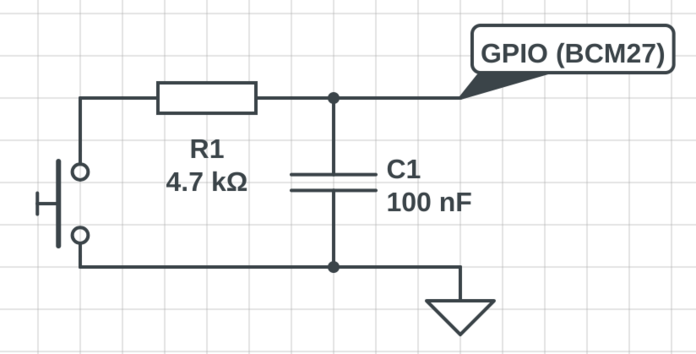
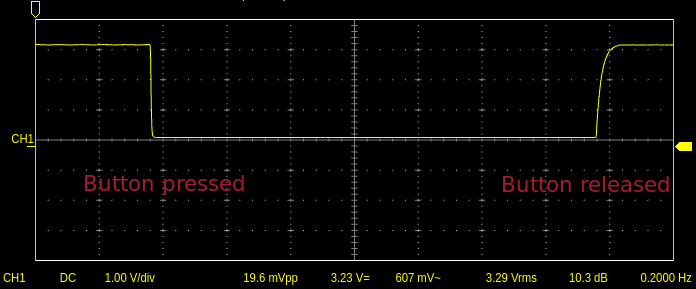
A button connected to the Raspberry pi GPIO as shown in the schema to debounce noisy contacts
-
USB speaker with a microphone e.g. Jabra Speak 410
-
microSD card 8GB
-
USB type-A to microUSB cable
-
micro USB power supply 5V 500mA


Operating system
Install Raspberry Pi Imager into your notebook. Launch it and choose Raspberry Pi OS Lite to write into the microSD card
Power on the Raspberry Pi and finish the installation process. Log into its console using either:
- wifi (from your notebook:
ssh pi@raspberrypi) - connected USB keyboard and HDMI monitor
- serial port using USB to TTL Serial Cable
Prerequisites
Once you are logged into the Raspberry pi console update your system
sudo apt update
sudo apt upgrade
Install git. It will be used to download the kukuc-clock
sudo apt install -y git
How to install
Clone the kukuc-clock source code into your home directory
cd
git clone https://gitea.virtonline.eu/2HoursProject/kukuc-clock.git --depth 1
Go into the newly created directory
cd ~/kukuc-clock
Configuration
Check your Raspberry pi board pin layout and make sure your button matches with the GPIO pin PIN = 27 from kukuc-clock.py
pinout

Set the username and password for the Text-To-Speech API as username:password
nano credentials.txt
Use raspi-config "System Options -> Audio" to generate the ALSA config file
sudo raspi-config
Alternatively check your sound card
aplay -l
Put your sound card number "card 0" or "card 1" into the ALSA config file
nano .asoundrc
Install the ALSA config file
mv .asoundrc ~/
Run the simulation
Test it first with emulated GPIO. It will simulate the button event: press and hold for 8 seconds then release. It should play the time from the speaker. It works also on X86 cpu without GPIO hardware under linux
python3 kukuc-clock.py test
Run it!
Just run python3 kukuc-clock.py then press and hold the button connected to the GPIO for at least 5 seconds
python3 kukuc-clock.py
Pres Ctrl+c to exit
Run unit tests
cd test
python3 -m unittest test_slovak_datetime_formatter
Make it a service to automaticaly start and run in the backgroud
Prepare the systemd service file
If your $HOME directory is other then /home/pi then modify the systemd service file
sed -i "s#/home/pi#$HOME#g" kukuc-clock.py.service
If your username and group is other then pi and pi then also run
sed -i "s#User=pi#User=$USER#" kukuc-clock.service
sed -i "s#Group=pi#Group=$(id -gn)#" kukuc-clock.service
Install the systemd service file
sudo mv kukuc-clock.service /etc/systemd/system/
Reload systemd manager configuration
sudo systemctl daemon-reload
Enable the kukuc-clock service at boot time and also run it
sudo systemctl enable --now kukuc-clock
If it does not work check logs
journalctl -f -u kukuc-clock
Set volume for playback and recording
Launch soundcard mixer
alsamixer
Press F6 to select a soundcard. Find your USB sound device in the list e.g. Jabra Speak 410 USB. Press F4 and use up/down arrow keys to set recording volume and repeat also for the playback (F3). Make sure it is not muted. Press (m) to toggle mute. Press ESC to exit.
To preserve audio setting after the boot run
sudo alsactl store