
Content
- Using a Resin 3D Printer for PCB Exposure
- The Printer: Anycubic Photon Mono 4
- Workflow Overview
- Prerequisites
- Step-by-Step Guide
Using a Resin 3D Printer for PCB Exposure
This guide documents the process of using a resin 3D printer, such as the Anycubic Photon Mono 4, as a UV light source to expose photosensitive materials like pre-sensitized copper boards or solder masks. The printer's LCD screen acts as a precise digital mask.
The Printer: Anycubic Photon Mono 4
Based on the user manual, here are the technical specifications for the printer, followed by an analysis of why this specific machine is excellent for DIY PCB fabrication.
Technical Specifications
- System: Photon Mono 4
- Screen / Display: 7-inch 10K Monochrome LCD
- Resolution (XY): 9024 x 5120 pixels
- Light Source: Matrix LED light source (405nm wavelength)
- Build Volume: 153.4 mm (L) x 87 mm (W) x 165 mm (H)
- Z-Axis Accuracy: 0.01 mm
- Layer Thickness: 0.01 ~ 0.15 mm
- Connectivity: USB Type-A (2.0)
- Machine Dimensions: 230 mm x 235 mm x 391 mm
- Weight: 4 kg
Why is it a good tool for DIY PCBs?
Using an MSLA (Masked Stereolithography) resin printer for creating PCBs is a technique known as "Direct UV Exposure." Instead of printing a plastic part, you use the printer's LCD screen as a dynamic digital mask to cure photosensitive materials on a copper board.
Here is why the Anycubic Photon Mono 4 specifically is well-suited for this task:
1. Extremely High Resolution (10K Screen) The standout feature of this printer is the 10K (9024 x 5120) resolution with a pixel size of 17µm (0.017mm) on a 7-inch screen.
- Why it helps: In PCB fabrication, resolution dictates how thin your traces can be. A 10K screen provides an exceptionally small pixel pitch. To put this in perspective, this is equivalent to a print resolution of approximately 1500 DPI.
- Calculation: The screen width is 153.4mm (6.04 inches). 9024 pixels / 6.04 inches ≈ 1494 DPI.
- This allows you to expose traces for fine-pitch SMD components (like TQFP or 0402 packages) with professional-grade sharpness, far exceeding what is possible with inkjet or laser-printed transparencies.
2. Uniform Light Source
- Why it helps: The "Matrix LED" ensures uniform light distribution across the entire build area. When exposing a photosensitized board, uneven lighting can cause some areas to be under-exposed (washing away traces) or over-exposed (causing traces to merge). The matrix source ensures the center and corners of your PCB receive the same energy, resulting in a reliable etch.
3. Perfect Wavelength (405nm)
- Why it helps: The UV LEDs in resin printers operate at 405nm. This wavelength is perfectly compatible with most standard dry film photoresists and UV-curable solder masks used in PCB manufacturing. You do not need to modify the light source.
Workflow Overview
The process involves exporting 2D layer images from your PCB design, converting them into a flat 3D model, and then "printing" this model with specific exposure settings in your slicer.
Prerequisites
Software
- KiCad (for PCB design and SVG export)
- Inkscape (for SVG manipulation)
- Blender (for 3D model creation)
- Chitubox (or your printer's slicing software)
Hardware
- A resin 3D printer (e.g., Anycubic Photon Mono 4)

- Photosensitive PCB. For consistent results, a pre-sensitized board like the Bungard positive photoresist boards is highly recommended due to its uniform coating. A good example is Bungard 160x100 double-sided 3,49 €.

- UV light curing Solder Mask e.g. from Mechanic. Use green as the solder mask and white for the silkscreen.


Installation
Ensure you have installed all:
sudo apt update
sudo apt install inkscape blender kicad
Make sure you have recent versions installed:
inkscape --version
blender --version
kicad-cli version
This guide was developed to work with Inkscape 1.2.2, Blender 5.0.0 and KiCad 9.0.6
Step-by-Step Guide
1. Export Layers from KiCad
- Open your PCB project in the KiCad PCB Editor.
- Go to File -> Plot and select
Plot formatasSVGand set theOutput directory. - In the
Include Layerssection select layersB.Cu,B.MaskandF.Silkscreen. Each layer will be ploted as a separate SVG file. - Optionaly, select additional layer(s) e.g.
Edge.Cutsin thePlot on All Layerssection. This way you can merge layers i.e. add board outset into each file generated. This is usually not needed. - Click Plot and Close.


2. SVG to STL Conversion
The SVG file will be converted to STL in two steps. This can be done either manually or automatically with the script.
Manual Conversion
If you prefer to do all the steps manually, here is the step-by-step guide.
Prepare the SVG
Step 1: Open Your SVG in Inkscape
Go to File → Open and select your SVG.
Remove embedded texts. Embedded texts can be redundant for searchability. To remove them:
- Press
Ctrl + F(or go to Edit → Find/Replace...). - In the panel (usually on the right), under
Options, look for "Object Type". - Uncheck "All Types" (if selected) and check only "Text".
- Click the Find button. All hidden text objects will be selected.
- Press
Delete(or go to Edit → Delete).
Step 2: Select Everything
Press Ctrl + A to select all objects on your canvas.
Step 3: Convert Strokes to Paths
Go to Path → Stroke to Path (Shift + Alt + C). This converts any lines into editable paths, which is crucial for Blender.
Step 4: Unionize Paths
To combine all separate paths into a single object:
Go to Path → Union (Ctrl ++).
Your SVG should now appear as a single curve object.
Step 5: Set Object Dimensions
In the top toolbar, click on the lock proportions icon and set the width (W:) or height (H:) of the object.
Step 6: Export Your Cleaned SVG
Go to File → Export.
Set DPI to 1494, select Plain SVG format, set the export path, and click Export.
Ensure you export in Plain SVG format (not Inkscape SVG) for optimal compatibility with Blender.
Convert the SVG to a 3D Model
Step 1: Open Blender
Open Blender. In the Scene Collection, delete the default cube.
Step 2: Set Units to Millimeters
Go to Scene Properties (the cone/sphere/cube icon on the right sidebar) and open Units.
Set: Unit Scale: 0.001, Length: Millimeters.
This tells Blender that 1 Blender unit = 1 mm.
Step 3: Import SVG
Go to File → Import → SVG. Select the imported object by clicking on its edge.
Step 4: Convert Object to Mesh
With the object selected, go to Object -> Convert -> Mesh.
Step 5: Check Dimensions
Press the N key to open the Transform panel and look at the Dimensions. The Z-axis dimension should be zero.
Step 6: Add Solidify Modifier
Click Add Modifier → Generate → Solidify.
Set Thickness: 0.1, Even Thickness: yes, and Fill Rim: ON.
Monitor the real thickness displayed on the Z-axis in the Dimensions panel.
Step 7: Export to STL
Go to File → Export → Stl (.stl).
Check Apply Modifiers and save the file.
Automated Conversion
This entire workflow can be automated in the Linux terminal using Inkscape's command-line mode and Blender's Python scripting API.
Use the shell script svg2stl.sh to do the whole job in one go:
Setup:
chmod +x svg2stl.sh
nano svg2stl.sh
The thickness THICKNESS_MM of the model can be adjusted. Set the resolution of your 3D printer's screen in EXPORT_DPI.
# Thickness of the generated 3D model in mm
THICKNESS_MM="0.1"

# Print resolution
# DPI based on the 3D printer resolution (e.g. 1494 for Anycubic Photon Mono 4)
EXPORT_DPI=1494
Usage:
Convert all svg files having the prefix Step_Down_Carrier_Board and apply inversion for file with postfix B_Mask.
./svg2stl.sh -i B_Mask examples/3D_print_svg_2_stl/Step_Down_Carrier_Board
3. Slicing in Chitubox
This is where you set the exposure time. The Chitubox slicer requires at least one bottom and one normal layer to be defined. So, the idea is to split the thickness of the model into two or more layers and define the exposure time for each layer.
- Open Chitubox
cd /opt/CBD/CHITUBOX_Basic
./CHITUBOX_Basic.sh
-
Import your STL file. Lay it flat and center on the build plate.

-
Go to the Slice Settings and set the following parameters.
Note: You can also import the print profile from Anycubic_Photon_Mono_4_profile_00.cfgx.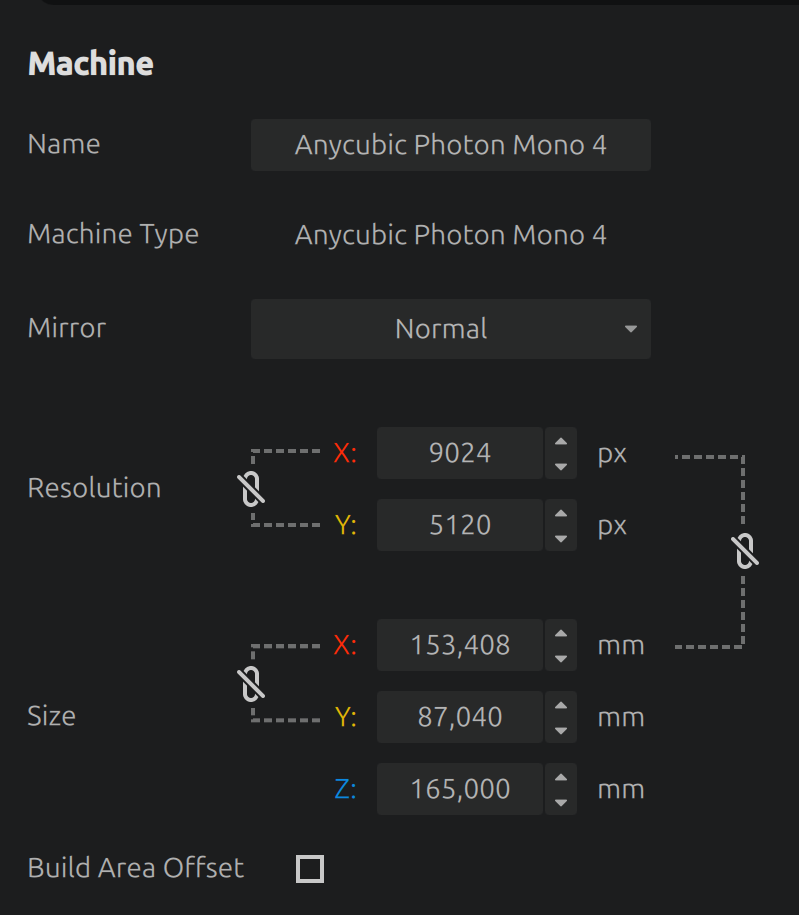
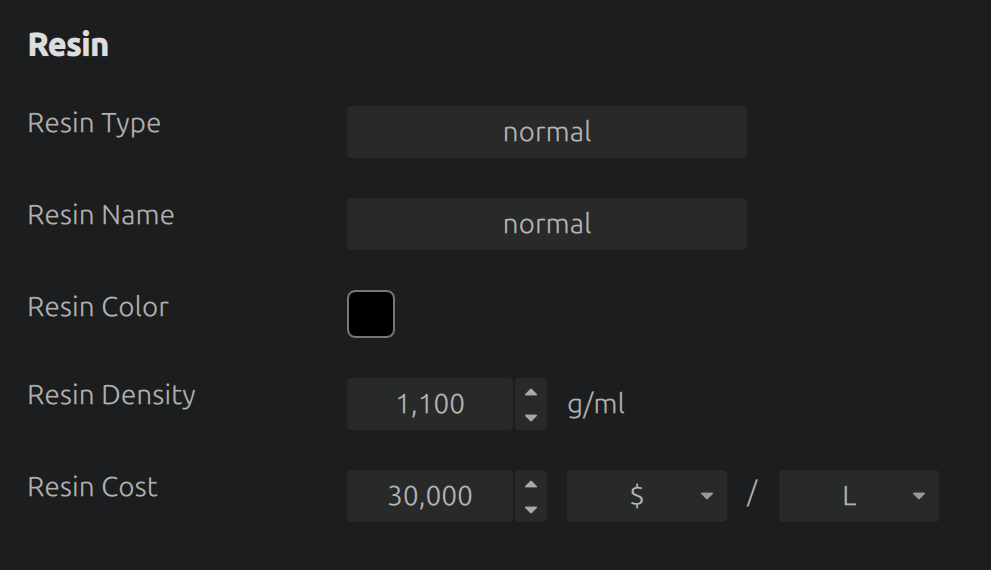


Exposure Time Examples:
- Pre-sensitized boards from Bungard requre 2 minutes to cure.
- Solder mask in a syringe from Mechanic require 30 minutes to harden.
Since the minimum exposure time per layer is 0.1s and maximum 200s, calculate the total exposure time.
-
1 minutes (60 seconds)
- Model Thickness (Blender):
0.1 mm - Bottom Layer Count:
1 - Layer Height:
0.05 mm(creates 2 layer) - Bottom Exposure Time:
60 s - Normal Exposure Time:
0.1 s(minimum value)
- Model Thickness (Blender):
-
4 minutes (240 seconds)
- Model Thickness (Blender):
0.1 mm - Bottom Layer Count:
1 - Layer Height:
0.05 mm(creates 2 layers) - Bottom Exposure Time:
200 s(max for the first layer) - Normal Exposure Time:
40 s(for the second layer)
- Model Thickness (Blender):
-
10 minutes (600 seconds)
- Model Thickness (Blender):
0.1 mm - Layer Height:
0.025 mm(creates 4 layers) - Bottom Layer Count:
1 - Bottom Exposure Time:
0.1 s(minimum value) - Normal Exposure Time:
200 s(This will apply to the 3 normal layers, giving 3*200 = 600s total).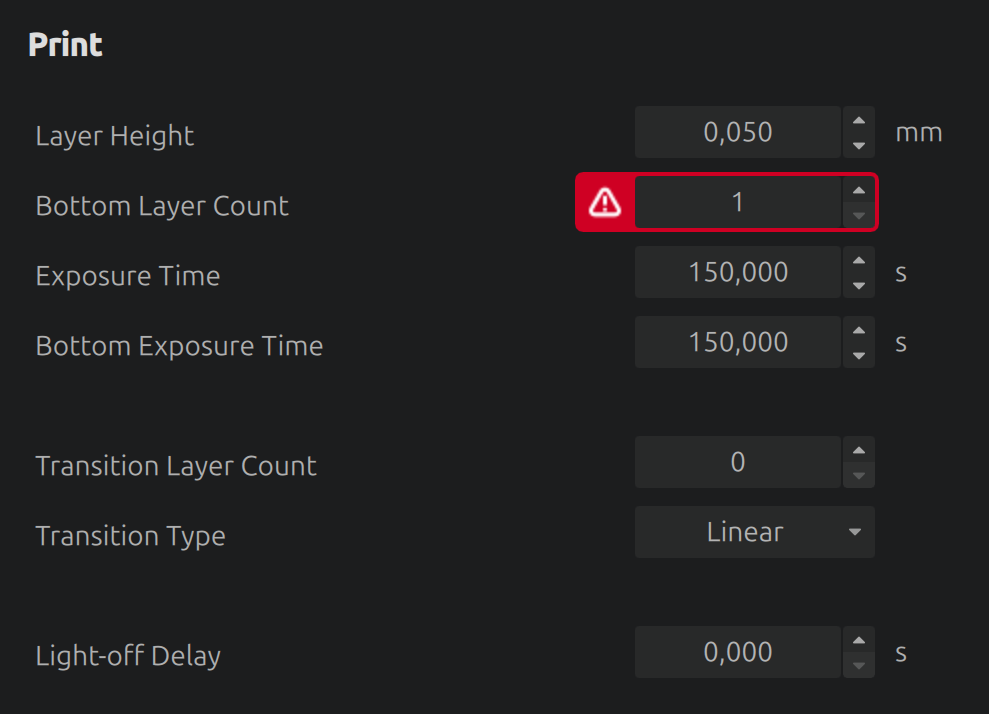
- Model Thickness (Blender):

-
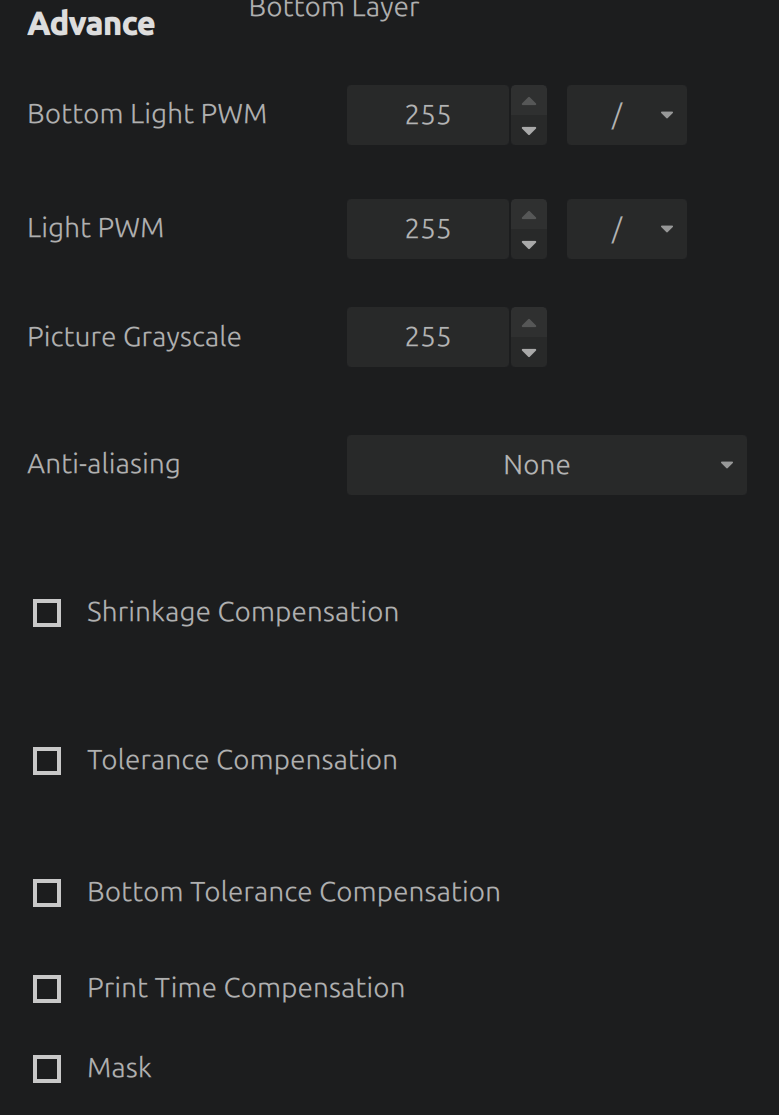
Crucially, turn off Anti-aliasing. Go to the "Advanced" tab and set Anti-aliasing. This ensures the sharpest possible pixels for crisp traces.
-
Slice the model and save the file to the USB drive.

4. Exposing the Board
- IMPORTANT: Remove the resin vat and the build plate from your printer. You only need the LCD screen and the UV light source. Protect the screen with a spare FEP film or a screen protector.
- Place your pre-sensitized PCB directly on the protected LCD screen.
- Put same weights on the PCB to keep it flat. You also can create a jig that would keep the double-sided board aligned.
- Insert the USB drive containing the 3D model.
- Start the "print". The printer will expose the board using the layer images and times you configured.
5. Developing
- After exposure, you must develop the board to reveal the pattern.
- For a positive photoresist board (like the Bungard brand), the developer is a weak alkaline solution. A common and effective developer is a 1% solution of Sodium Hydroxide (NaOH) in distilled or demineralised water.
- For a negative dry film resist, the developer is a solution of Sodium Carbonate (washing soda). Mix approximately 10 grams of sodium carbonate per liter of warm water until dissolved.
- For the UV light curing solder mask, allow more time to it to harden. Clean the uncured part with Izopropanol afterwards.
- Safety First: When working with chemicals like NaOH or Sodium Carbonate, always wear gloves and eye protection.
- Submerge the board in the appropriate developer solution and gently agitate it. This should take 30-90 seconds, depending on the resist and developer freshness.
- Rinse the board thoroughly with water.
6. CNC drilling and milling
To drill holes and mill board outlines, gcode files need to be generated. Load them to gSender and drill and mill the board on a CNC router.
- To generate
gcodefiles fromgerberformat, look in the examples/CNC_mill_drill_from_gerber - To generate
gcodefiles fromKiCadformat, look in the examples/CNC_mill_drill_from_KiCad
